We can easily opt for insurance while creating shipments using below steps.
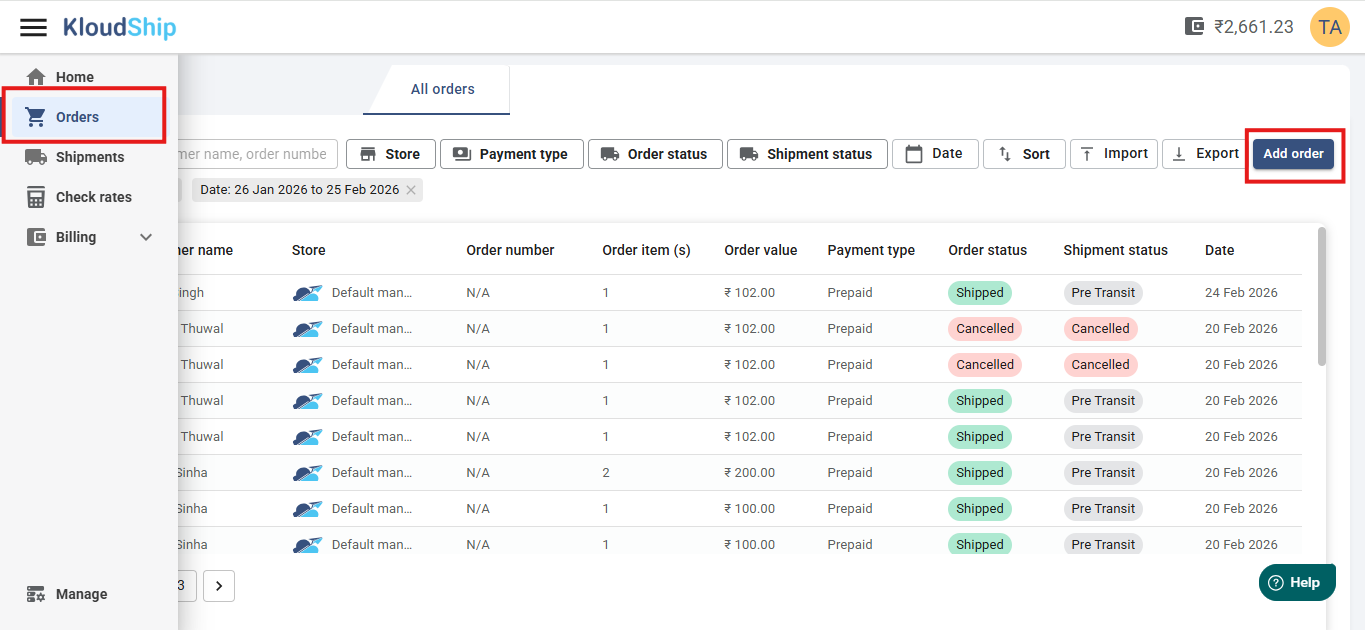
Step 01: Navigate to order
- From side menu navigate to Orders and click on Add order.
Step 02: Provide Shipment details
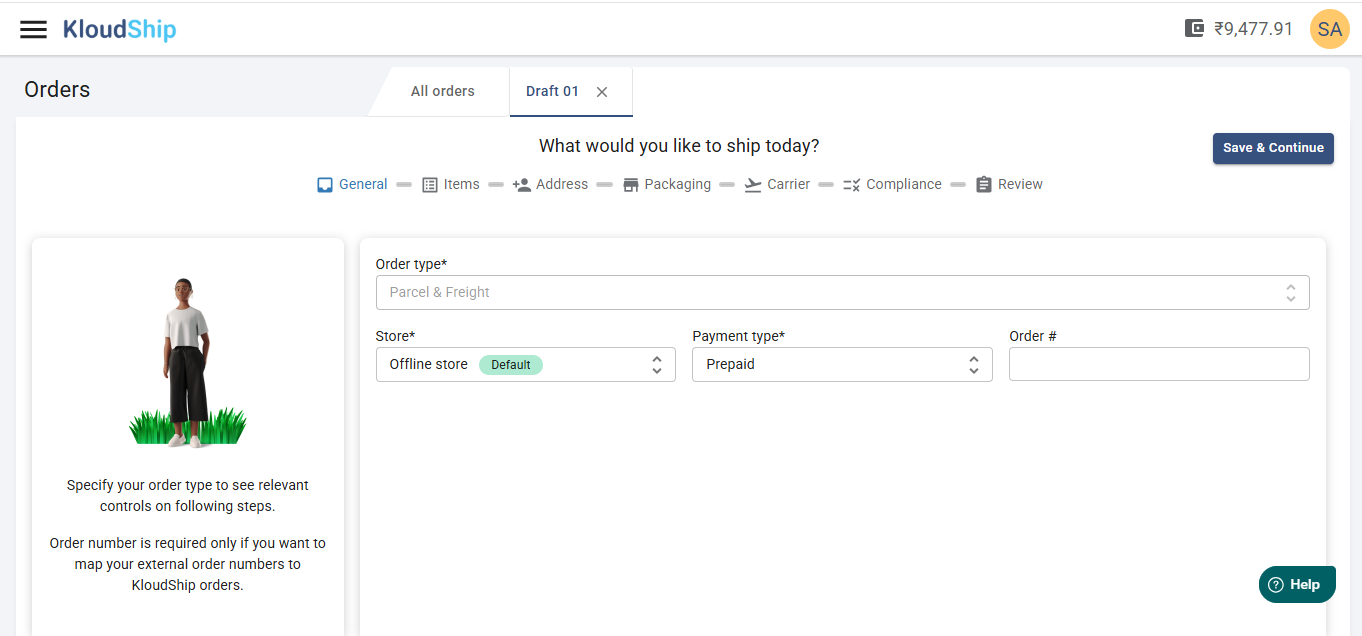
- In first step provide general details like order type, store, payment type (Prepaid/COD), order number (optional) and click on save & continue.
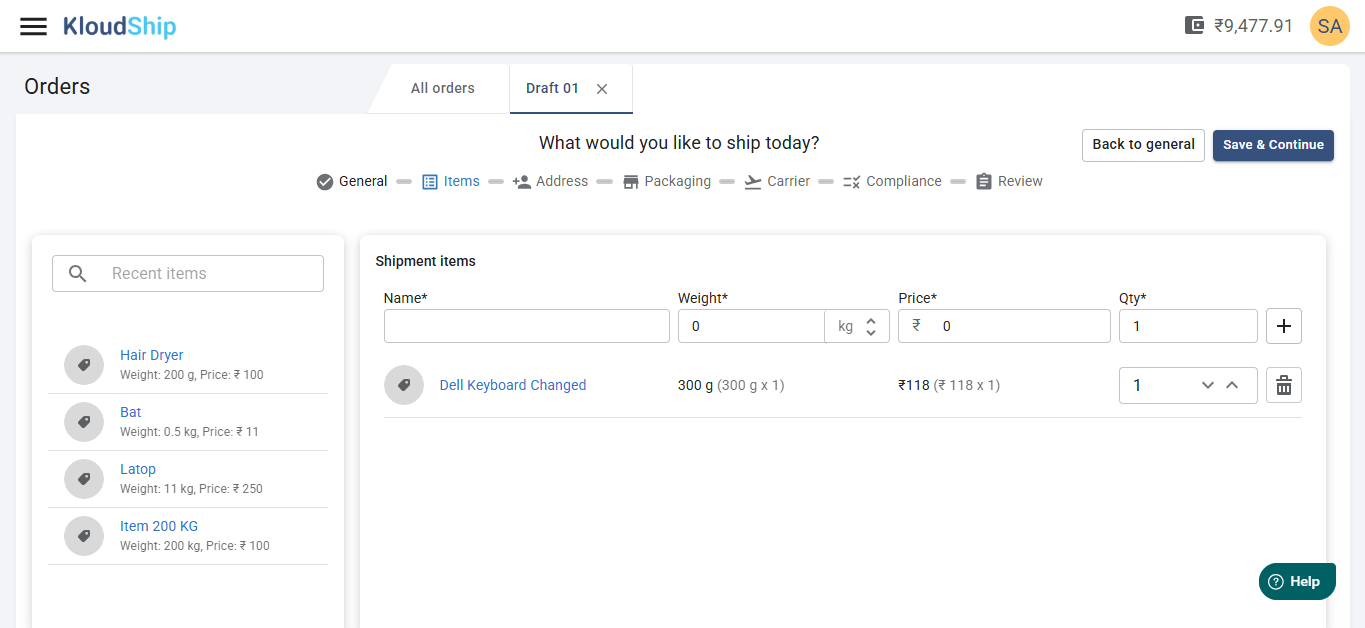
- Now provide item details (Item name, weight, price and quantity) and click on save and continue.
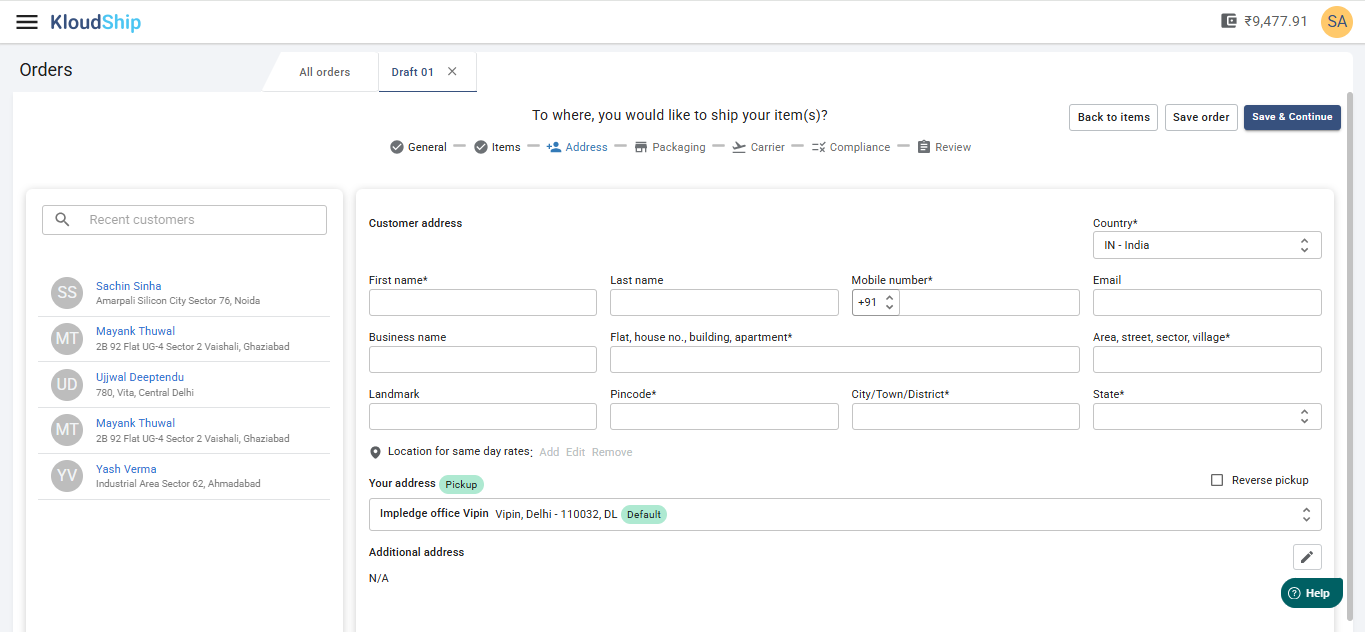
- Provide Pickup and received address and click on save & continue.
Step 03: Select insurance
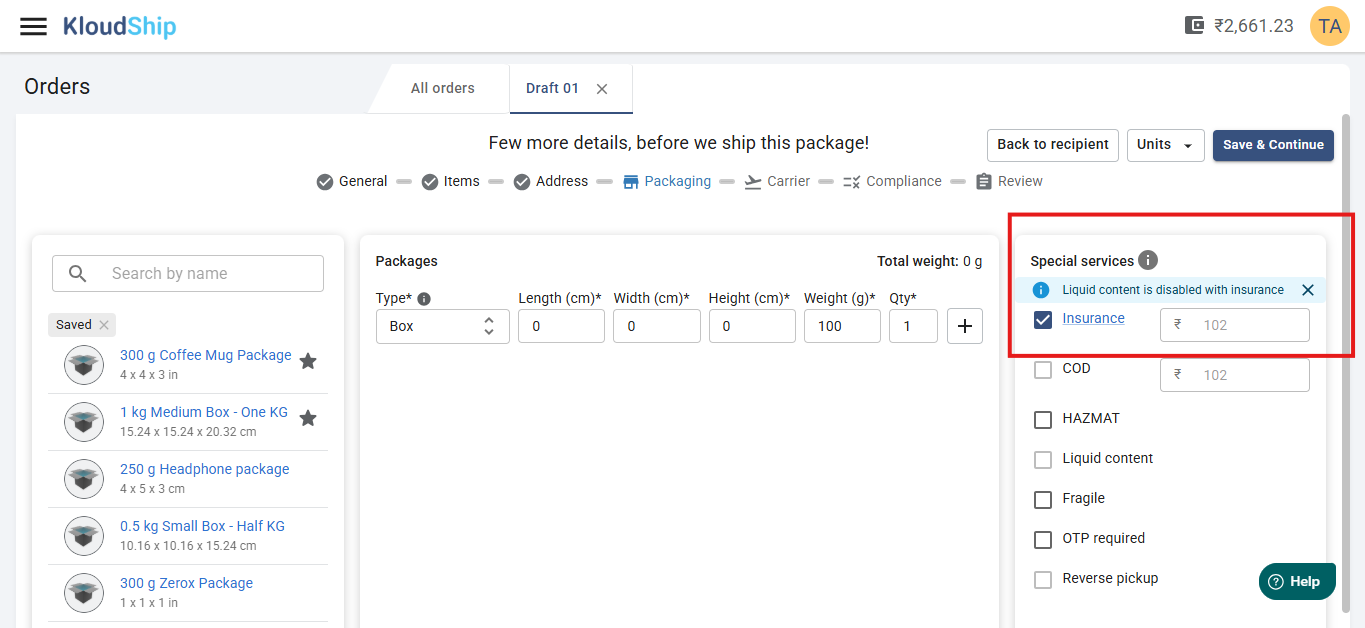
- In packaging steps you will get a side card to select special services.
- Check the insurance box from special services.
- Provide package details and click on save & continue.
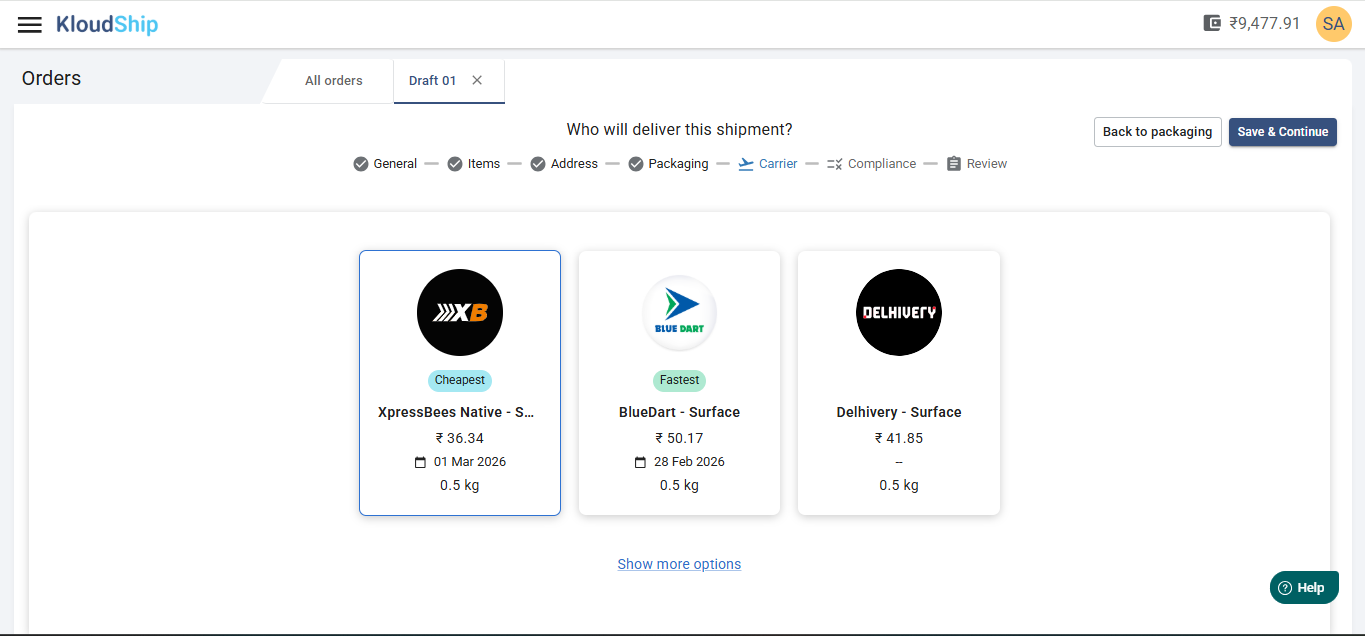
- Select your preferred rate and click on save & continue.
- Provide insurance if required and E-way bill (if order value is more than 50,000) and click on save & continue.
Step 04: Create shipment
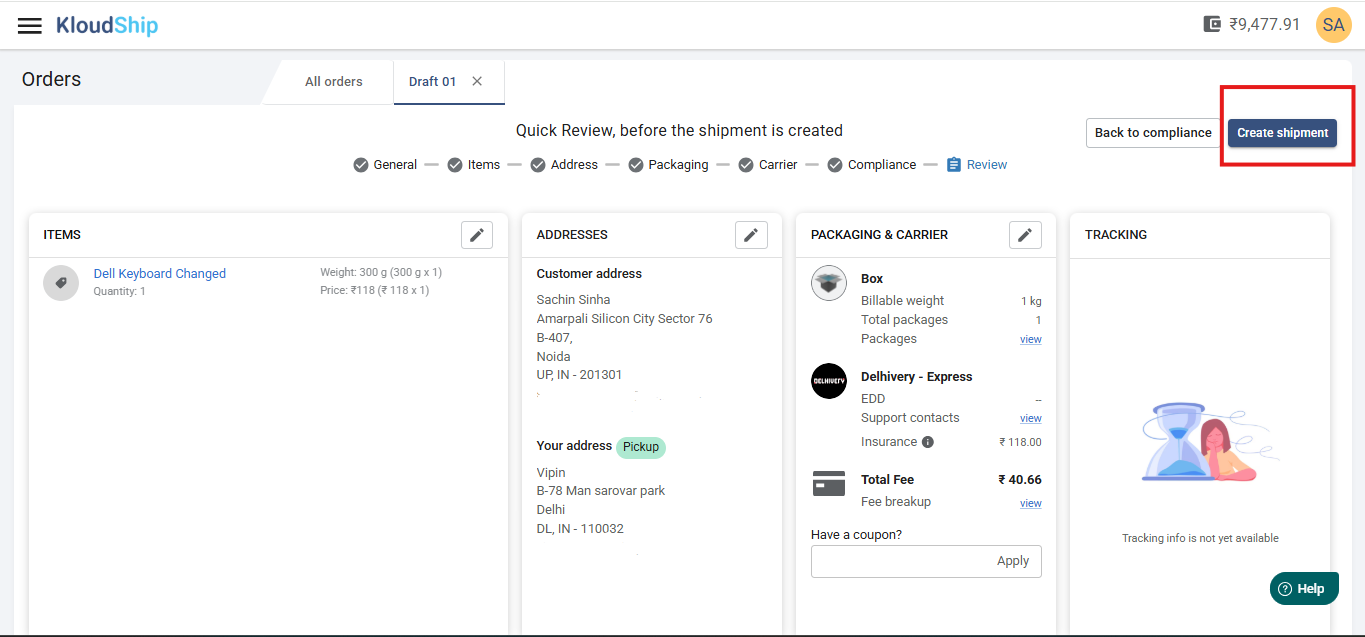
- Review your details if all looks good then click on create shipment button.
- Your shipment with insurance will be created.
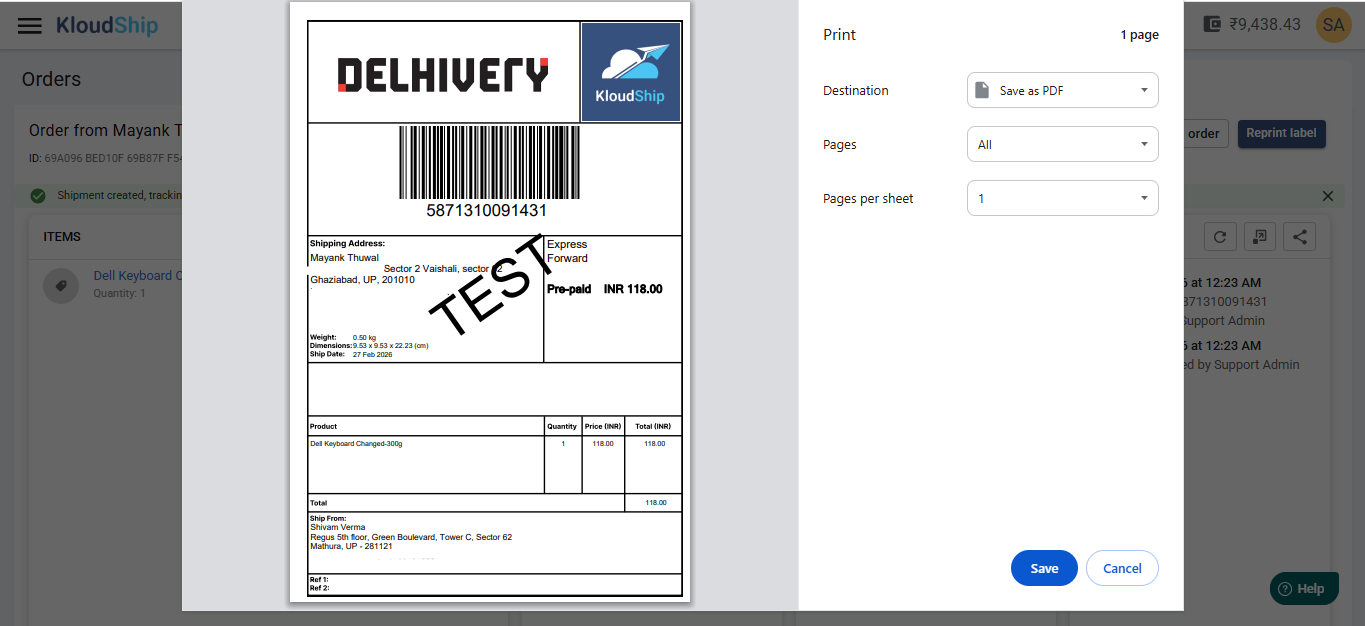
- After shipment is created successfully you will get a label.
- Print the label and paste it in Package/Box.
Next steps:
- Track Shipment: Follow this article to see how you can track a shipment
- Reprint Label: In case you need a second copy of your label, follow this article
- Cancel Shipment: You can cancel a shipment if you do not want to ship this package
- Clone Shipment: You can clone a shipment if you want to ship another package to the same address.
Not Yet Signed Up?
Was this article helpful?
That’s Great!
Thank you for your feedback
Sorry! We couldn't be helpful
Thank you for your feedback
Feedback sent
We appreciate your effort and will try to fix the article